How to Take Better GTA 5 Screenshots
Create stunning GTA 5 screenshots with the right mods and techniques.
Essential Tools
1. Graphics Mod
NVE, QuantV, or VisualV for better visuals
2. ReShade/ENB
Post-processing for professional look
3. Extended Camera Settings
Better camera control
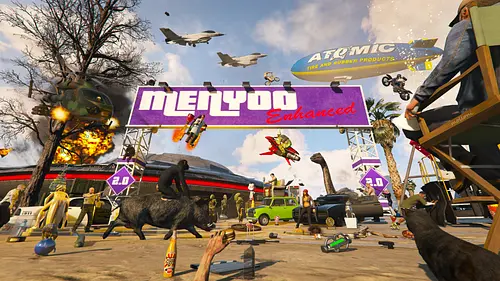
4. Menyoo Trainer
Scene setup and camera tools
Camera Techniques
Using Rockstar Editor:
- Record footage (F1)
- Open Rockstar Editor
- Use Free Camera
- Add depth of field
- Adjust time for lighting
- Take screenshot
Using Menyoo Camera:
- Open Menyoo (F8)
- Camera Options
- Free Camera Mode
- Adjust settings
- Screenshot
Lighting Tips
- Golden Hour - Dawn/dusk best lighting
- Cloudy Weather - Soft, even light
- Night - Dramatic with neon
- Rain - Reflections on wet surfaces
Composition Rules
- Rule of Thirds - Subject off-center
- Leading Lines - Roads, buildings guide eye
- Framing - Use environment to frame subject
- Depth - Include foreground and background
ReShade for Screenshots
Enable these effects:
- Depth of Field (DOF) - Focus effect
- Sharpening - Crisp details
- Color Grading - Mood setting
- Vignette - Draws attention to center
Hide HUD
Remove all UI elements:
- Settings > Display > HUD off
- Or use trainer Hide HUD option
- Or Rockstar Editor (no HUD)
Screenshot Settings
- Use highest graphics settings
- Enable MSAA or use ReShade AA
- Use 4K resolution if possible
- PNG format for no compression
Popular Screenshot Spots
- Vinewood Sign
- Del Perro Pier sunset
- Downtown at night
- Highway with city backdrop
- Beach at sunset
Conclusion
Great screenshots need good mods, lighting, and composition. Practice makes perfect!
![Armored VIP Transporter pack [Add-On]](https://files.gtavillage.com/store/553c977013de89435c693e36b5ac149b.webp)

Comments0
Sign in to leave a comment
No comments yet. Be the first to comment!