How to Use Scene Director in GTA 5
Scene Director lets you control NPCs, create scenarios, and direct cinematic scenes. Perfect for machinima creators.
What is Scene Director?
Scene Director allows you to:
- Control NPC movements
- Create scripted sequences
- Record and playback actions
- Direct complex scenes
- Make NPCs perform animations
Installation
- Install Script Hook V
- Install ScriptHookVDotNet
- Install NativeUI
- Copy Scene Director .dll to scripts folder
Opening Scene Director
Default key: F10 or check config
Basic Features
Actor Management:
- Spawn actors (NPCs)
- Select and move actors
- Change actor model
- Set actor properties
Movement Recording:
- Select actor
- Start recording
- Move actor manually
- Stop recording
- Path saved for playback
Animation Assignment:
- Select actor
- Open animation browser
- Choose animation
- Actor performs action
Creating a Scene
- Plan your scene
- Spawn all needed actors
- Position actors at start positions
- Record movement paths
- Assign animations
- Add vehicles if needed
- Test playback
- Record with Rockstar Editor
Advanced Features
Timeline:
- Synchronize multiple actors
- Set action triggers
- Create sequences
Vehicle Control:
- Assign vehicles to actors
- Record driving paths
- Create chase scenes
Saving Scenes:
- Save scene to file
- Load later for editing
- Share with others
Tips for Best Results
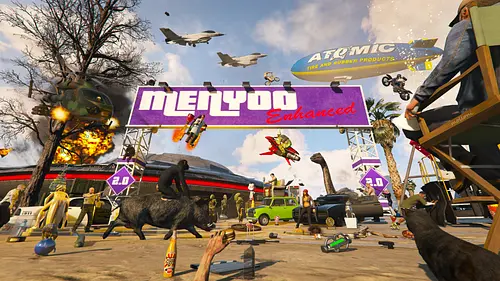
- Use with Menyoo for object placement
- Combine with graphics mods
- Plan scenes before starting
- Test animations first
- Record multiple takes
Conclusion
Scene Director is essential for GTA 5 filmmaking. Master it to create amazing content!
![Armored VIP Transporter pack [Add-On]](https://files.gtavillage.com/store/553c977013de89435c693e36b5ac149b.webp)

Comments0
Sign in to leave a comment
No comments yet. Be the first to comment!