Save File Locations
GTA 5 stores save files in a specific folder on your PC. Knowing the exact paths is critical for backup and mod compatibility.
| Platform | Save Path |
|---|---|
| Steam / Retail | C:\Users\[Name]\Documents\Rockstar Games\GTA V\Profiles\[ID]\ |
| Epic Games | C:\Users\[Name]\Documents\Rockstar Games\GTA V\Profiles\[ID]\ |
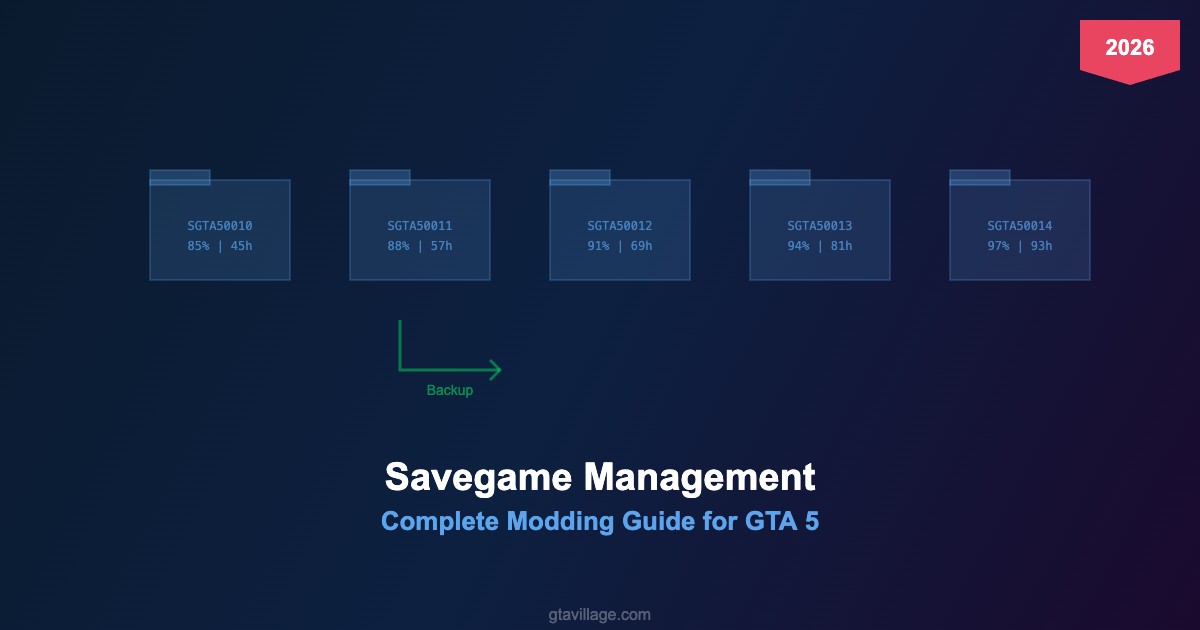
File naming: Save slots are named SGTA50000 through SGTA50015 (16 slots max).
How to Backup Saves
- Navigate to the save folder path above
- Copy all
SGTA5*files to a backup folder - Also backup
settings.xml(game settings) andpc_settings.bin - Label your backup with the date and mod list for reference
Tip: Create a backup before installing any new mod, especially script mods that alter game progress.
Using 100% Completion Saves
Many mods require story mode completion to unlock all areas and features. A 100% save gives you:
- All map areas unlocked (no restricted zones)
- All 3 protagonists available for switching
- All properties, vehicles, and weapons purchased
- Maximum cash for buying mod-related items
Installation: Download a 100% save, rename it to an empty slot (e.g., SGTA50015), and place it in your Profiles folder.
Troubleshooting Save Issues
| Problem | Cause | Solution |
|---|---|---|
| Save won't load | Corrupted by script mod crash | Restore from backup |
| Missing save slots | Wrong profile folder or cloud sync conflict | Check Rockstar Social Club cloud settings |
| Infinite saving icon | Script mod blocking save routine | Disable .asi mods, save, then re-enable |
| Progress reset | Mod altered game flags | Use a clean 100% save as baseline |
Best Practices for Modded Games
- Separate profiles: Use different save slots for vanilla and modded playthroughs
- Disable cloud sync: Prevents modded saves from overwriting clean cloud backups
- Auto-save control: Disable auto-save when testing unstable mods
- Regular backups: Backup after every significant progress milestone

Comments0
Sign in to leave a comment
No comments yet. Be the first to comment!