Trainer Hotkeys - Customize Controls for GTA 5 Trainers
Master hotkey configuration for popular GTA 5 trainers. This 2026 guide covers default controls, customization methods, and how to avoid key conflicts between multiple mods.
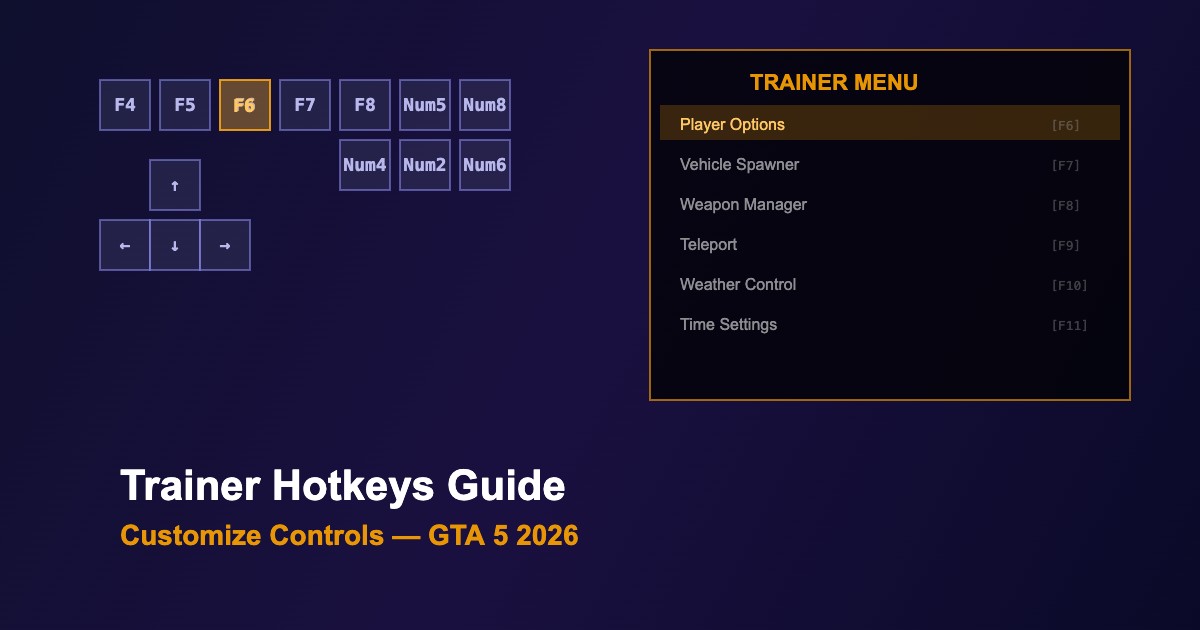
Default Hotkeys by Trainer
| Action |
Menyoo |
Simple Trainer |
Enhanced Native Trainer |
| Open Menu |
F8 |
F4 |
F6 |
| Navigate Up |
Num8 |
Num8 |
Num8 |
| Navigate Down |
Num2 |
Num2 |
Num2 |
| Select/Enter |
Num5 |
Num5 |
Num5 |
| Back |
Num0 |
Num0 |
Num0 |
| Left/Right |
Num4/Num6 |
Num4/Num6 |
Num4/Num6 |
How to Customize Hotkeys
| Trainer |
Config File |
Location |
| Menyoo |
menyooStuff/menyooConfig.ini |
GTA 5 root folder |
| Simple Trainer |
SimpleTrainer.ini |
GTA 5 root folder |
| Enhanced Native Trainer |
ent-config.xml |
GTA 5 root folder |
| Rampage Trainer |
RampageFiles/config.xml |
GTA 5 root folder |
Setting Up Quick Actions
-
Open the config file in any text editor (Notepad++, VS Code)
-
Find the keybind section — usually labeled [Keys], [Hotkeys], or <Keybinds>
-
Change key values — use Windows Virtual Key codes (e.g.,
VK_F5 = 0x74)
-
Save the file and restart GTA 5 for changes to take effect
-
Test in-game — verify the new bindings work correctly
Common Virtual Key Codes
| Key |
Code (Hex) |
Key |
Code (Hex) |
| F1-F12 |
0x70-0x7B |
Numpad 0-9 |
0x60-0x69 |
| A-Z |
0x41-0x5A |
0-9 |
0x30-0x39 |
| Ctrl |
0xA2/0xA3 |
Alt |
0xA4/0xA5 |
| Shift |
0xA0/0xA1 |
Enter |
0x0D |
Avoiding Key Conflicts
-
Map each trainer to different F-keys — e.g., Menyoo on F8, Simple Trainer on F4
-
Use modifier keys — Ctrl+Key or Alt+Key combinations reduce conflicts
-
Disable unused trainers — remove .asi files of trainers you don't actively use
-
Check LSPDFR bindings — LSPDFR uses many keys; review its keybindings.xml
-
Game controls — avoid binding to keys used by GTA 5 default controls (WASD, Space, etc.)
Comments0
Sign in to leave a comment
No comments yet. Be the first to comment!