GTA 5 Screenshot Photography - Capture Stunning Images with Mods
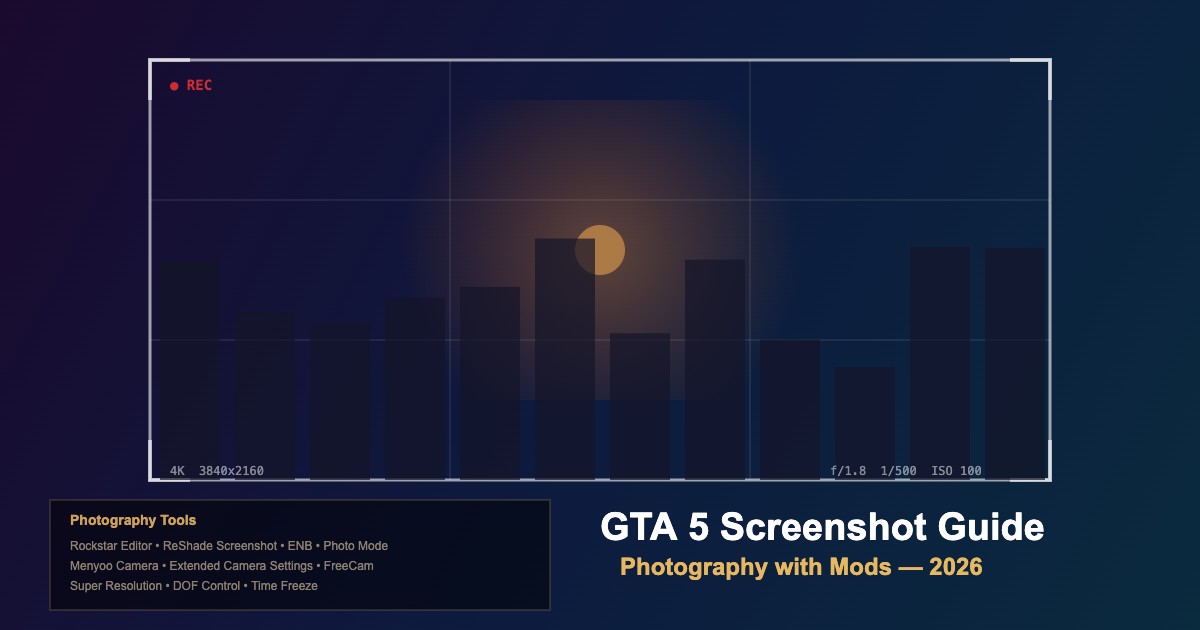
Turn GTA 5 into a virtual photography studio with the right mods and techniques. This 2026 guide covers camera tools, visual mods, and composition tips for breathtaking screenshots.
Essential Photography Mods
| Mod |
Purpose |
Key Feature |
| Extended Camera Settings |
Advanced camera control |
FOV, roll, position adjustment |
| Menyoo FreeCam |
Free camera placement |
Fly camera anywhere in the world |
| ReShade |
Post-processing effects |
DOF, color grading, sharpening |
| ENBSeries |
Advanced rendering |
Ray tracing, global illumination |
| Simple Trainer Time Freeze |
Freeze game time |
Perfect lighting conditions |
| Scene Director |
Pose NPCs and vehicles |
Set up custom scenes |
Photography Workflow
-
Set the scene — choose location, time of day, and weather using trainer
-
Freeze time — lock the game clock for consistent lighting
-
Position subjects — use Scene Director or Menyoo to place characters/vehicles
-
Enter FreeCam — detach camera from player for full composition control
-
Adjust FOV — lower FOV (30-50) for telephoto compression; higher (90+) for wide shots
-
Apply ReShade — enable DOF, color grading, and sharpening effects
-
Capture — use ReShade screenshot (high quality) or game capture
Composition Tips
-
Rule of thirds — place key subjects at grid intersections
-
Leading lines — use roads, buildings, and railings to guide the eye
-
Golden hour — set time to 6:00-7:00 or 18:00-19:00 for warm lighting
-
Depth layers — include foreground, middle ground, and background elements
-
Negative space — leave empty areas to give the subject room to breathe
-
Low angles — shoot from below for dramatic, powerful compositions
Resolution and Output
| Method |
Resolution |
Format |
| ReShade Screenshot |
Game resolution |
PNG (lossless) |
| Rockstar Editor Export |
Up to 4K |
PNG/JPEG |
| NVIDIA Ansel |
Up to 33x resolution |
PNG/HDR |
| DSR/VSR + Capture |
2x-4x native |
Any format |
Best Visual Mod Combos for Screenshots
-
NaturalVision Evolved + ReShade — photorealistic look
-
VisualV + Custom Timecycle — clean, natural visuals
-
ENB + ReShade — maximum visual fidelity (GPU heavy)
-
QuantV + ReShade — balanced quality with good performance
Comments0
Sign in to leave a comment
No comments yet. Be the first to comment!