Scene Director Mod for GTA 5 — Complete NPC Control Guide 2026
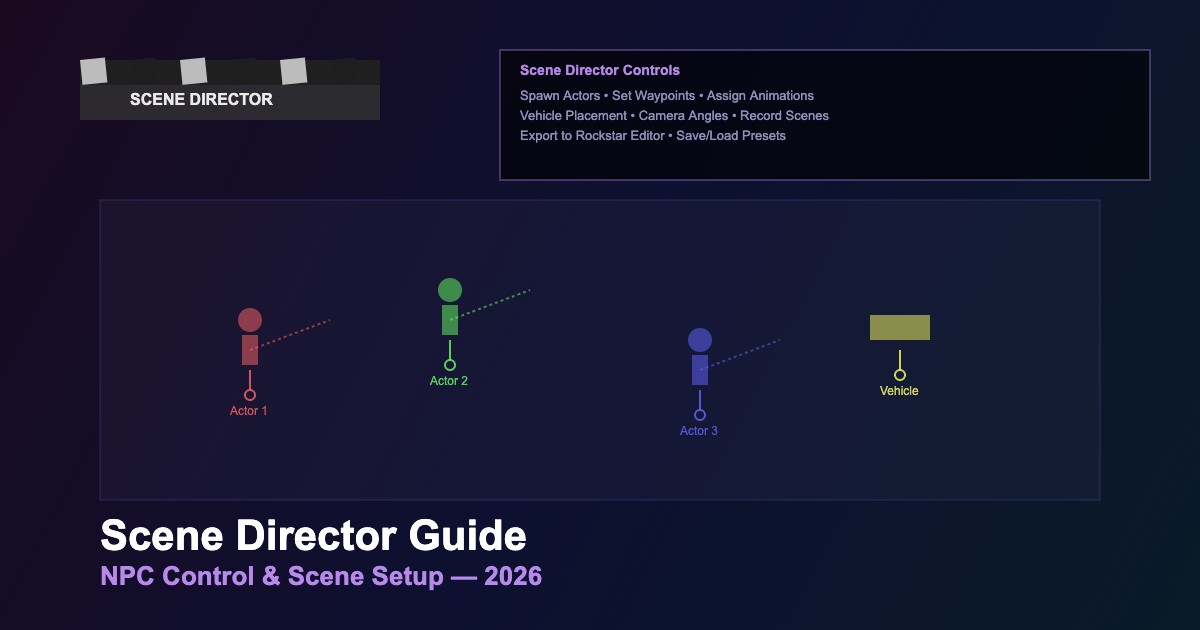
Scene Director is a powerful mod that gives you full control over NPCs, vehicles, and scene composition in GTA 5. Create cinematic sequences, custom scenarios, and dynamic encounters with this comprehensive tool.
| Feature | Description | Hotkey |
|---|---|---|
| Spawn NPC | Place any ped model at cursor position | F5 |
| Waypoint System | Set movement paths for spawned NPCs | F6 |
| Vehicle Spawn | Spawn and assign vehicles to NPCs | F7 |
| Animation Control | Play animations and scenarios on NPCs | F8 |
| Scene Save/Load | Save entire scenes for later use | F9 |
Installation Steps
- Download Scene Director from the official source
- Install Script Hook V and .NET Script Hook as prerequisites
- Copy
SceneDirector.dllto thescriptsfolder in your GTA 5 directory - Copy the
SceneDirectorconfig folder to the same location - Launch the game and press the menu key to open the director panel
Creating Your First Scene
- Open Scene Director menu and select Spawn Ped
- Choose a ped model from the categorized list (cops, civilians, gang members, etc.)
- Position the NPC using the placement cursor
- Add waypoints by selecting the NPC and clicking Add Waypoint
- Set actions at each waypoint: walk, run, shoot, take cover, use phone
- Press Play Scene to watch your creation come alive
Advanced NPC Behaviors
- Combat AI — set NPCs to attack specific targets or defend areas
- Vehicle Driving — assign NPCs to drive along custom routes
- Group Formation — create squads that move and act together
- Looping Scenes — scenes repeat automatically for ambient scenarios
- Timed Events — trigger actions after specific delays
Tips for Cinematic Use
- Combine with Rockstar Editor for professional camera angles
- Use
SET_ENTITY_INVINCIBLEfor actors that should not die during scenes - Save frequently — complex scenes can be lost on crashes
- Layer multiple scenes for rich, dynamic environments
Comments0
Sign in to leave a comment
No comments yet. Be the first to comment!