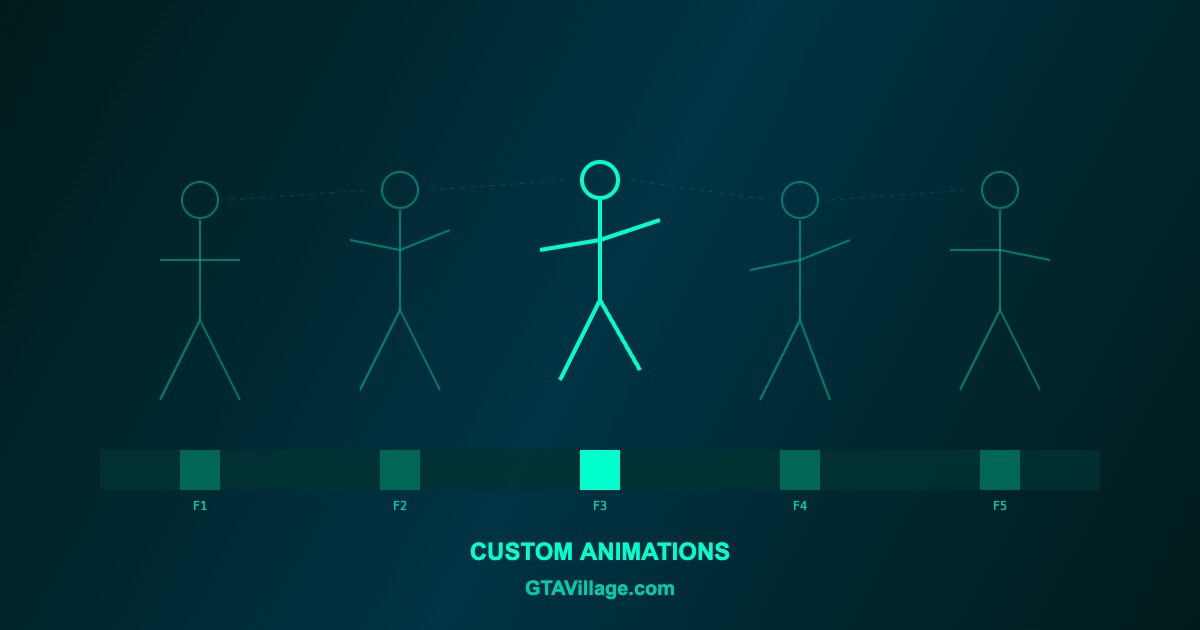
Animation Mods for GTA 5 — Custom Animations Installation Guide 2026
Animation mods replace or add new character movements, gestures, and actions in GTA 5. From realistic walking styles to custom emotes, this guide covers all methods of installing and using animation mods.
| Animation Type | Description | Method | Requirements |
|---|---|---|---|
| Walk Style | Replace default walking/running animations | RPF replacement | OpenIV |
| Custom Emotes | Trigger custom poses and gestures | Script mod | Script Hook V + .NET |
| Combat Animations | New fighting styles and weapon handling | RPF replacement | OpenIV |
| Vehicle Entry/Exit | Modified vehicle interaction animations | RPF replacement | OpenIV |
| Idle Animations | New standing and waiting behaviors | Script or RPF | Varies |
Method 1: RPF Animation Replacement
- Open OpenIV and navigate to
mods/x64a.rpf/anim/ - Find the animation dictionary (.ycd file) you want to replace
- Back up the original file before replacing
- Enable Edit Mode in OpenIV
- Drag and drop the new .ycd file to replace the original
- Test in-game to verify the animation plays correctly
Method 2: Script-Based Animation Mods
- Install Script Hook V and .NET Script Hook
- Download the animation mod (usually a .dll or .cs file)
- Place the file in your
scriptsfolder - If a config file is included, place it alongside the script
- Launch the game and use the mod's hotkey or menu to trigger animations
Popular Animation Mods
- Custom Walk Styles — choose from gangster, casual, injured, military walks
- Emote Menu — access dozens of poses, dances, and gestures via a menu
- Realistic Combat — overhauled melee and weapon handling animations
- Parkour Mod — adds wall running, vaulting, and acrobatic movements
- Sit Anywhere — sit on any surface, lean on walls, lie on ground
Creating Custom Animations
- Use 3DS Max or Blender with GTA 5 animation plugins
- Export animations to .ycd format using CodeWalker or similar tools
- Animation dictionaries must match the correct skeleton type (male/female ped)
- Test with
TASK_PLAY_ANIMnative function to preview custom animations - Frame rate should match game's expected 30fps animation rate
Troubleshooting
- T-pose: animation file is corrupt or wrong skeleton — re-export correctly
- No effect: wrong file path or animation dictionary name mismatch
- Game crash: incompatible animation format — verify game version compatibility
- Glitchy movement: blending issues between animations — check transition flags
Comments0
Sign in to leave a comment
No comments yet. Be the first to comment!