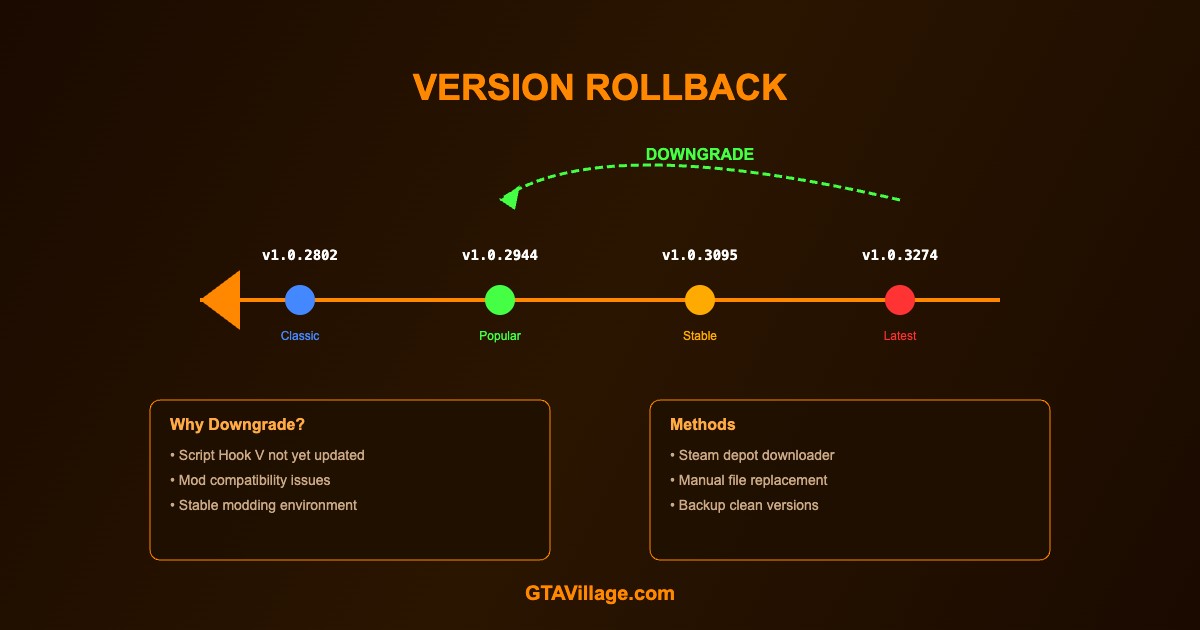
Downgrade GTA 5 for Modding — Version Rollback Guide 2026
When Rockstar updates GTA 5, Script Hook V and many mods break until updated. Downgrading lets you keep modding while waiting for compatibility patches. This guide covers all downgrade methods.
| Method | Platform | Difficulty | Reliability |
|---|---|---|---|
| Steam Depot Downloader | Steam only | Medium | High |
| Manual File Replacement | All platforms | Easy | High |
| Pre-made Downgrade Package | All platforms | Easy | Medium |
| Backup + Restore | All platforms | Easy | Very High |
Method 1: Steam Depot Downloader
- Download DepotDownloader from GitHub
- Open command prompt and navigate to the DepotDownloader folder
- Run:
dotnet DepotDownloader.dll -app 271590 -depot 271591 -manifest [ID] -username [steam] - Find the manifest ID for your desired version from SteamDB
- Wait for files to download (can take 30-60 minutes)
- Copy downloaded files over your GTA 5 installation
- Set Steam to offline mode to prevent auto-update
Method 2: Manual File Backup & Restore
- Before any update, backup these critical files from your GTA 5 folder:
-
GTA5.exe,GTAVLauncher.exe,update/update.rpf - Also backup
update/update2.rpfif it exists - When an unwanted update occurs, simply replace the updated files with your backups
- This is the most reliable method — always keep clean backups of working versions
Preventing Auto-Updates
- Steam: Set update to "Only update when I launch" → launch in offline mode
- Epic: Disable auto-update in settings, launch in offline mode
- Rockstar: Block launcher update URLs in Windows Firewall or hosts file
- Alternatively, set
GTA5.exeto read-only to prevent patching
Which Version to Use?
- Always use the latest version supported by Script Hook V
- Check the Script Hook V website for the current supported game version
- Older versions may lack bug fixes and improvements
- Some mods require specific game versions — check mod requirements
- LSPDFR typically supports versions within 1-2 updates of the latest
Important Warnings
- Never play GTA Online on a downgraded version — risk of ban
- Downgraded versions may have security vulnerabilities that were patched
- Keep your downgraded installation offline to avoid forced updates
- Some DLC content may not work on older versions
Comments0
Sign in to leave a comment
No comments yet. Be the first to comment!